
Where Odoo keeps attachments, why the filestore grows past your backup window, and how to move files to external storage safely, with a backup bucket you can switch to.
- Free the local file only after the upload is read back and verified.
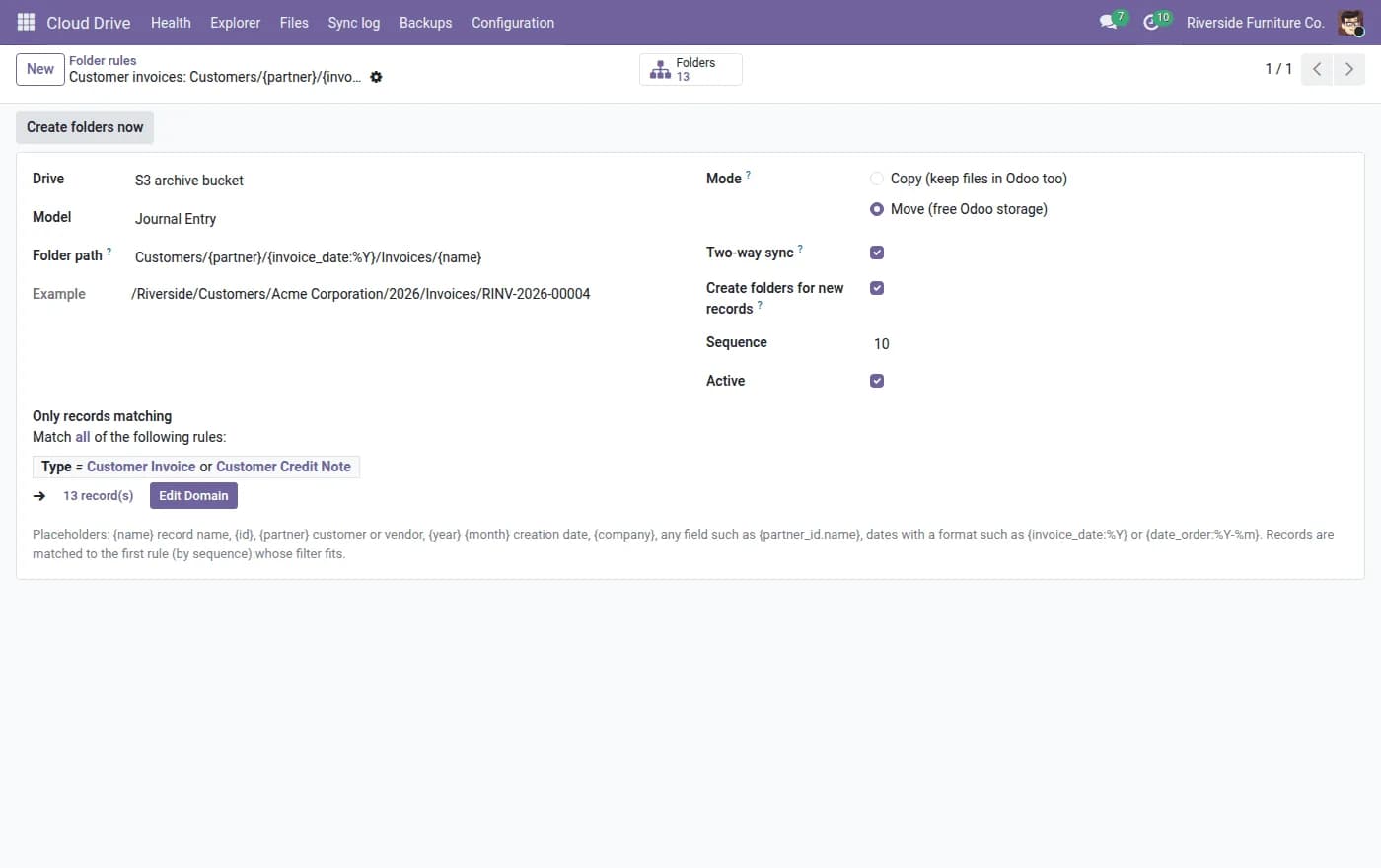
- Use folder rules so the bucket is readable without Odoo.
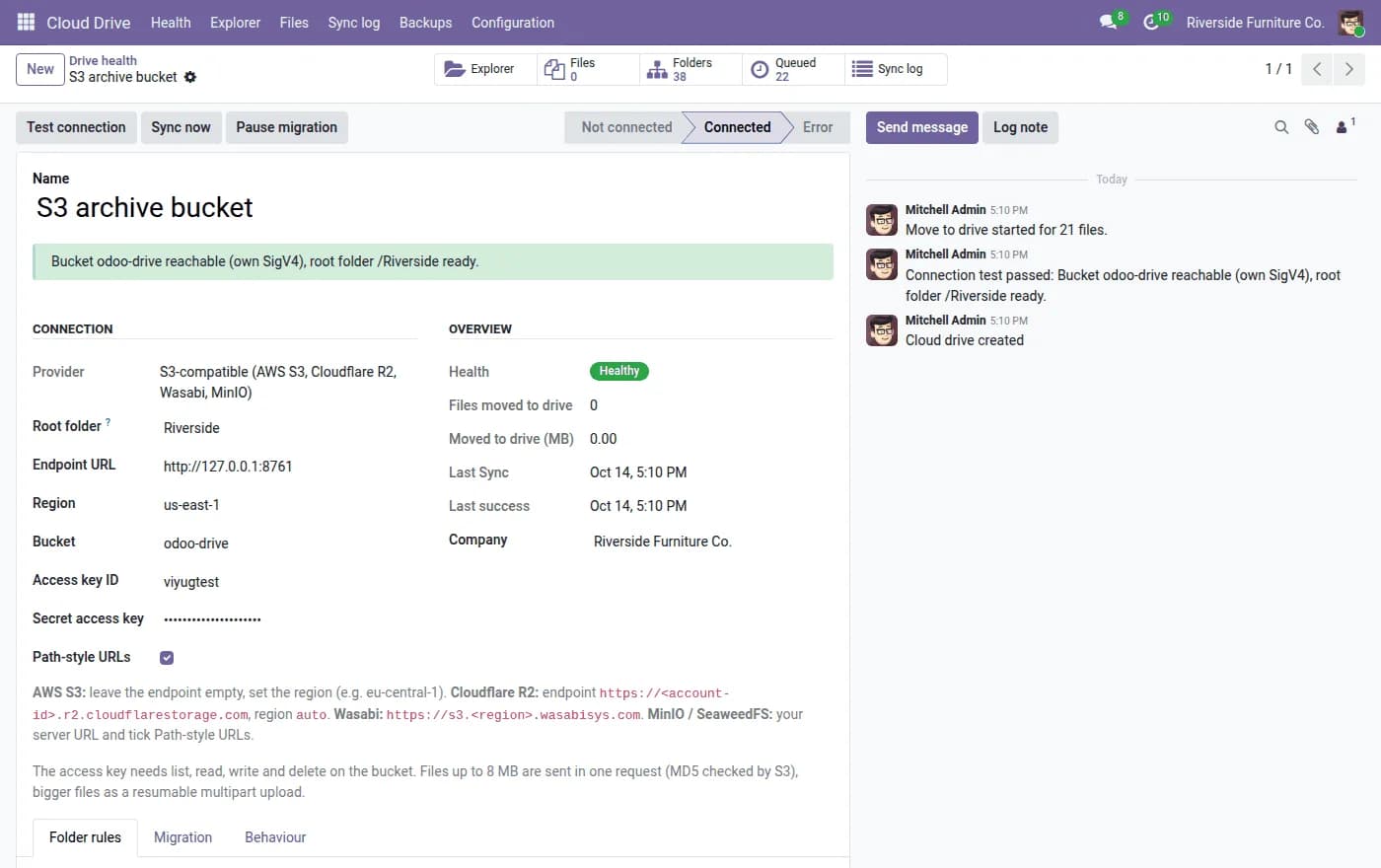
- Keep a synced backup bucket and know how to switch to it.
Every invoice PDF, email attachment and uploaded document in Odoo is stored as a file in the filestore, next to the database. It grows quietly. One day the server disk is 90% full, backups take hours, and copying a staging database means copying hundreds of gigabytes.
Why not just mount a bigger disk?
You can, and for a small database it is fine. But the filestore is still tied to one server, still part of every backup, and on Odoo.sh or other managed hosting you often cannot change it at all. Moving files to object storage separates the two problems: the database stays small, and the files live somewhere built to hold them.
What a safe migration looks like
- Upload the file to the external storage first.
- Read it back and verify it matches.
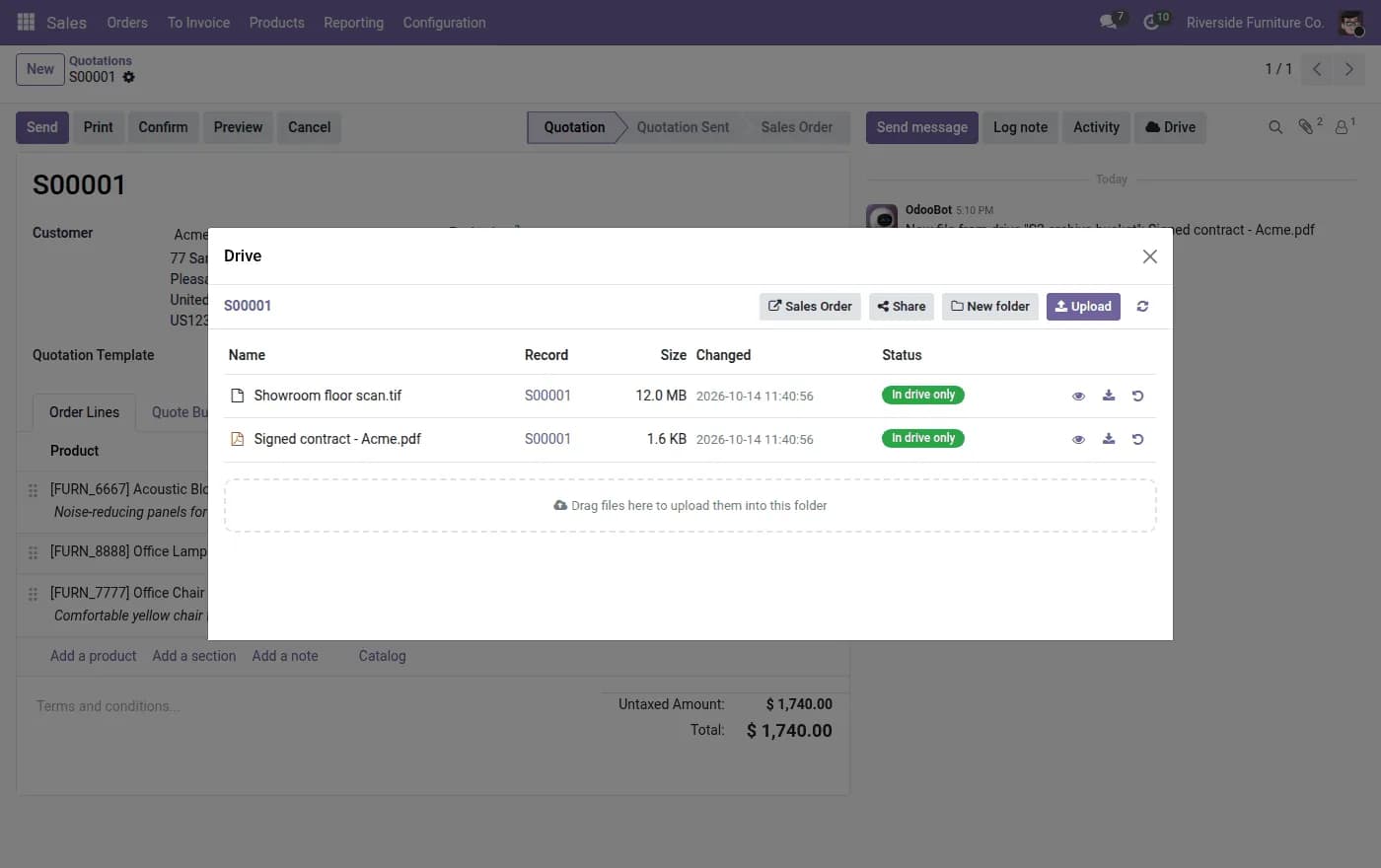
- Only then free the local copy, and keep the Odoo record and its link.
- Do this in the background, with pause and resume, so users keep working.
The order matters. A tool that deletes the local file before the upload is verified will, sooner or later, lose a document.
Folder rules instead of one big bucket
A bucket with a million files in random names is hard to use. Folder rules per model give the files a readable path, for example Customers / customer name / year / Invoices. Finance can browse the bucket directly, and an auditor can find a document without opening Odoo.
Plan for the day the bucket is down
External storage is another dependency. Ask what happens if the bucket is lost, or the provider has an outage. Two practical answers:
- Keep a synced backup bucket with a different provider, for example Amazon S3 as the backup for a Google Cloud bucket.
- Make sure files are stored under a fixed path, so an administrator can point the drive at the backup bucket and Odoo reads the same documents from there.
New uploads are not lost during an outage, because they stay in Odoo until a bucket is available again.
Which storage should you pick?
- Amazon S3 or an S3-compatible service (including Google Cloud Storage with HMAC keys): the default for most teams.
- SFTP or a NAS: good when you already own the hardware and want files on your own network.
- Google Drive or Dropbox: when people also need to open the files in those tools, with two-way sync of folders into the Odoo chatter.
This is what Viyug Cloud Drive does: a built-in local or NAS drive, plus add-ons for S3, SFTP, Google Drive and Dropbox, verified offload, background migration of existing files, a file explorer and share links with expiry.
Test with a sample of your own files on a staging database first. Check that the counts match, that documents open in Odoo, and that you can restore one.
Frequently asked questions
Do users notice the files have moved?
No. Odoo keeps the attachment record and its link, so files open as before.
Does it work on Odoo.sh?
Yes. Moving attachments out of the filestore is one of the main reasons teams on Odoo.sh use it.
Can we use Google Cloud Storage?
Yes, through the S3 add-on with Google Cloud HMAC keys.